
Multistream
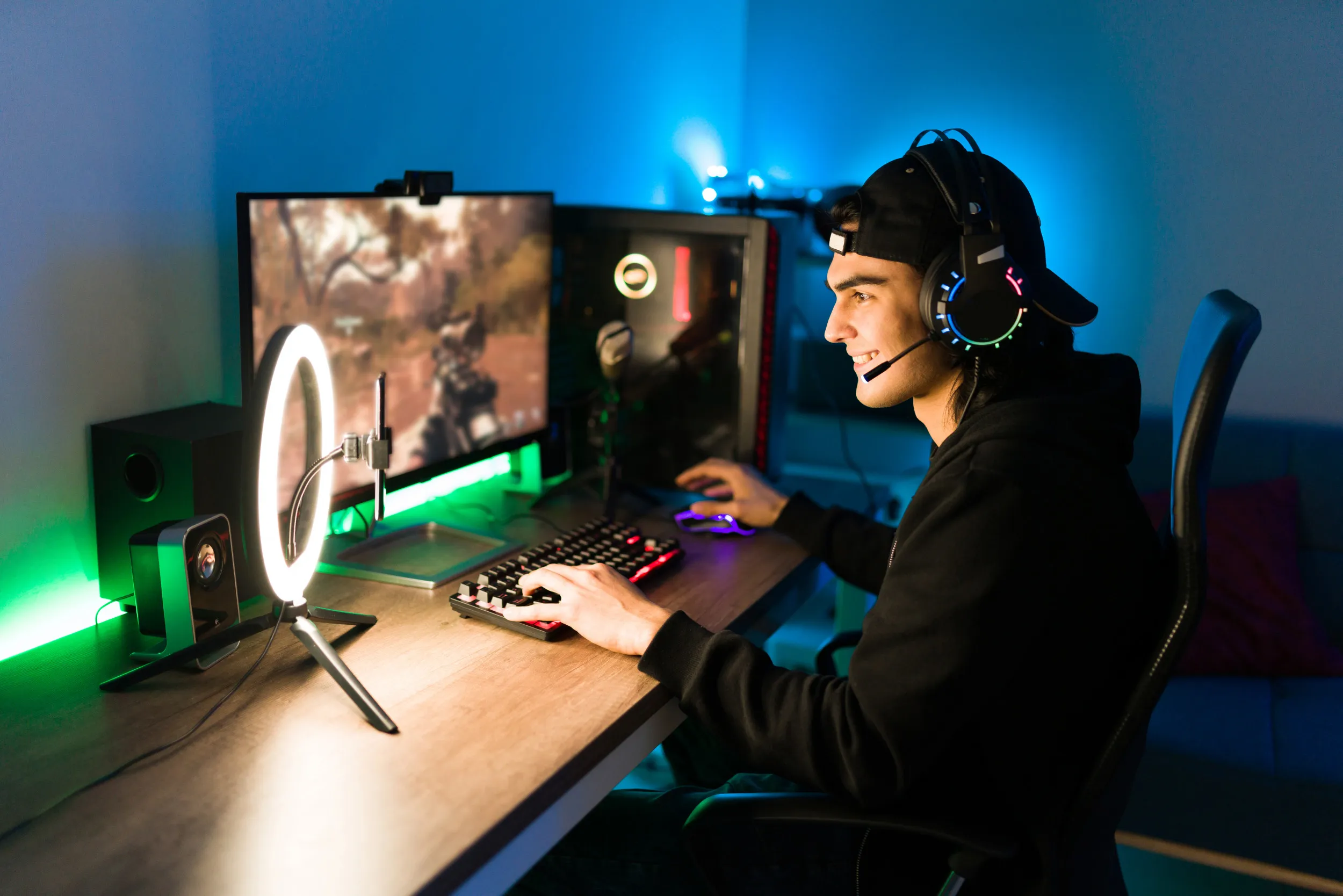
Send one OBS feed to Kick, Loop, YouTube, Twitch, Facebook, Instagram, and custom RTMP/SRT — up to eight destinations on Starter and Pro.
AI Clips
ClipBot listens for hype moments on live and VOD, cuts vertical 9:16 segments, and queues them for review in your dashboard.
94 viral
"That read was insane — clip it for Shorts"
How it works
- 01
Connect your stream
Point OBS at ClipBot ingest. We fan out and record in parallel.
- 02
Detect highlights
Audio and motion signals flag moments on live and cloud VOD.
- 03
Publish everywhere
Review vertical clips, tweak captions, Auto Share to socials.
Built for your workflow
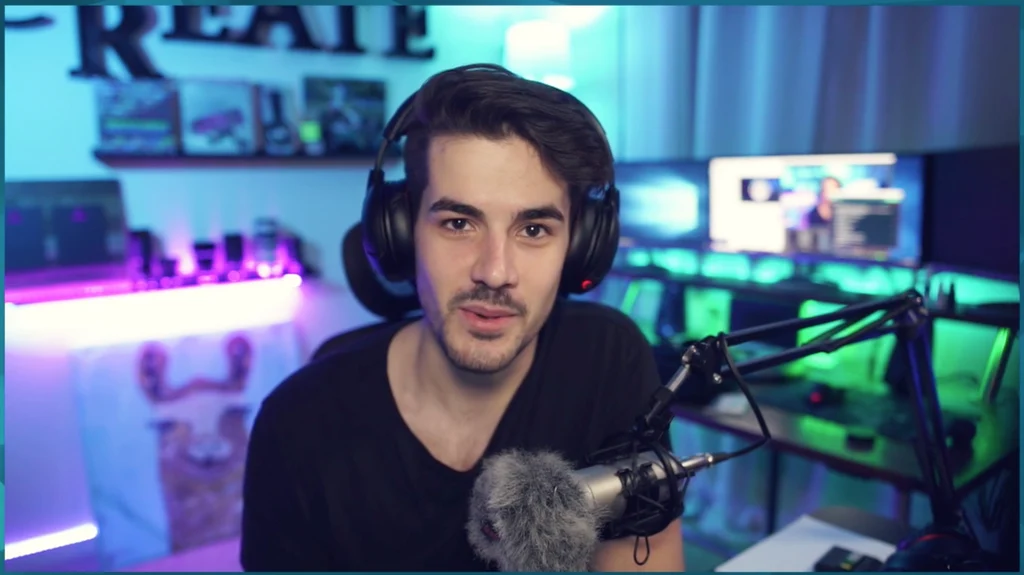
Whether you raid on Kick, tour on Loop, or run webinars — ClipBot keeps distribution and clips in one place.

FAQ
- Do I need Restream and a separate clipper?
- No. ClipBot multistreams, records cloud VOD, detects highlights, and exports vertical clips in one workspace.
- Which platforms are supported?
- Kick, Loop, YouTube, Twitch, Facebook, Instagram, TikTok, X, and custom RTMP/SRT endpoints on Pro.
- Can I try ClipBot before paying?
- Yes. The free tier includes limited destinations and clips. Open the demo workspace from Sign in on preview builds.
Make every live broadcast work twice
Before the stream
Choose a primary channel, secondary live destinations and the accounts you use for short videos. Set the visibility on each destination and run a private test where supported.
After the stream
Open the recording and look for a moment that works on its own: a decisive play, a clear demonstration or an unexpected answer. Review the vertical cut and send viewers back to the replay.
OBS multistreaming and clips from one live feed
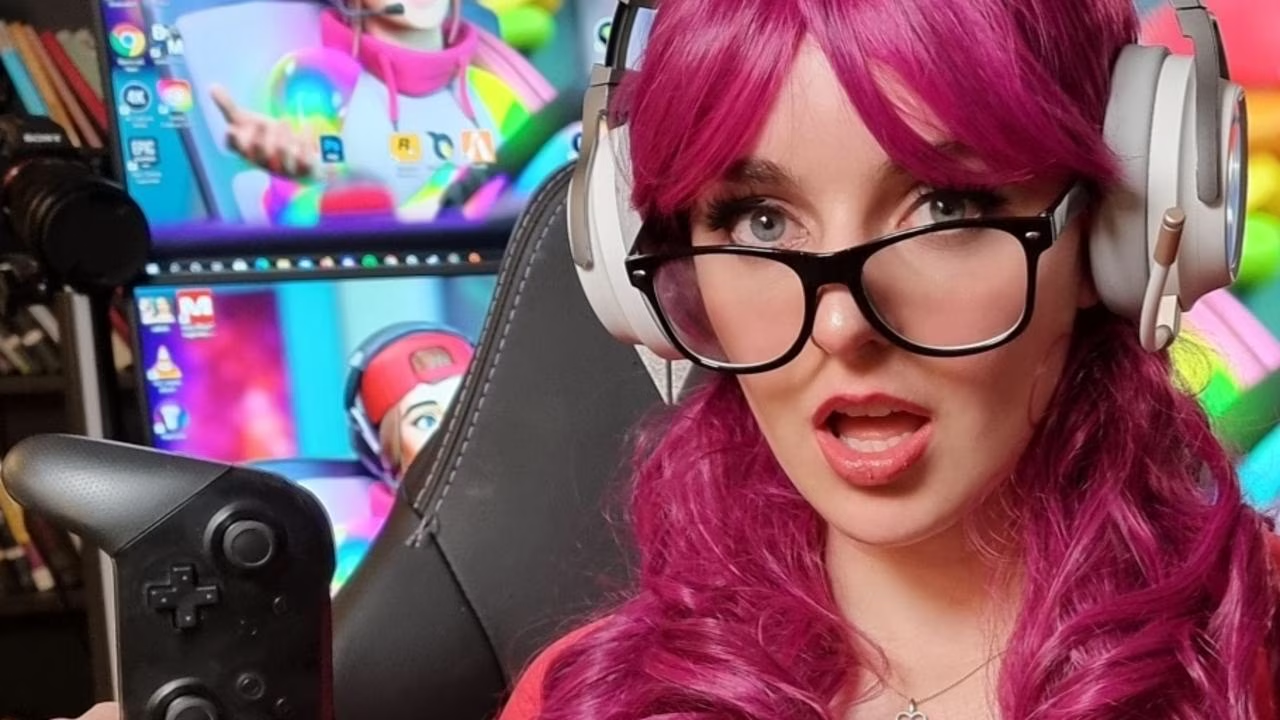
ClipBot is built for creators who already use OBS. You keep your scenes, audio routing and graphics in place while ClipBot fans out to Kick, Loop, YouTube, Twitch, and the social destinations you enable for that session. After the show, the same broadcast becomes a cloud replay you can scrub for vertical highlights without exporting separate files from OBS.
How to get started
- Create a workspace, connect destination accounts, and copy your ClipBot ingest URL into OBS.
- Run a five-minute test stream and confirm each destination shows video, audio and your chosen visibility.
- Enable cloud recording when you want a replay, then review AI clip candidates after you end the session.
Related: Multistreaming · AI Clips · Stream on Loop
FAQ
- Do I need separate OBS profiles per destination?
- No. ClipBot receives one encode from OBS and handles distribution per destination you select in the workspace.
- Where do I compare destination limits?
- Free includes one live destination; Starter unlocks eight simultaneous outputs alongside recording and AI clips.